The Wildcat Chat Overlay now features a web-based Chat Scene Creator. You can build, customize, and manage your chat overlay OBS browser sources directly from your browser.
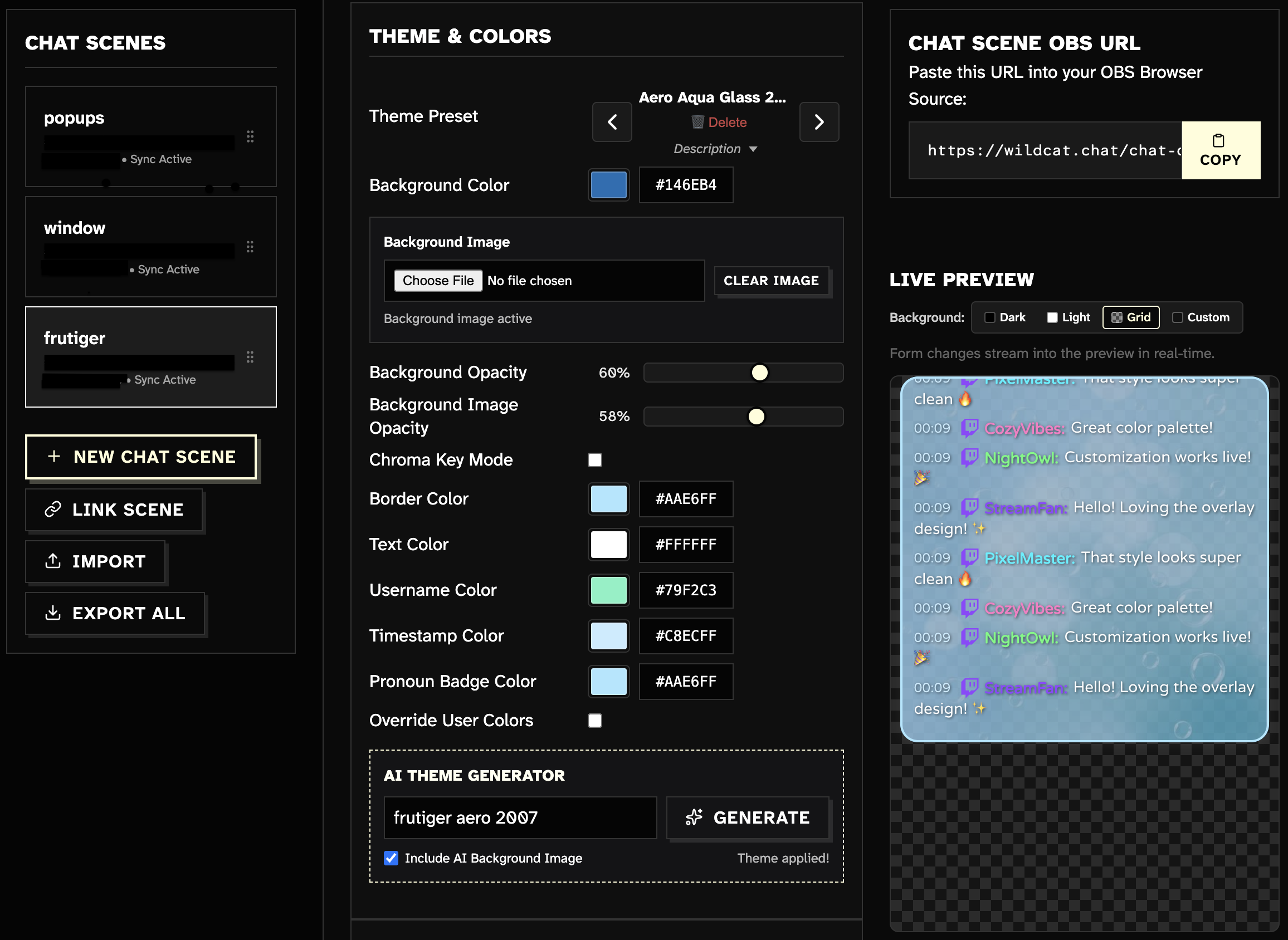
Web-Based Chat Scene Creator
You can customize every aspect of your chat overlay in the web interface. Adjust fonts, text colors, background opacities, borders, badges, and layout dimensions.
The Chat Scene Creator includes an interactive live preview. You can switch preview backgrounds between Dark, Light, Grid (Checkerboard), and Custom colors to test your design.
Automatic Real-Time OBS Sync
The Chat Scene Creator automatically generates a unique cloud sync token in your OBS URL (chat.html?scene=NAME&sync=TOKEN).
When you save changes in the web interface, your edits update your OBS Browser Source instantly without refreshing the page. If you prefer local controls, you can still right-click the browser source in OBS and select Interact to adjust settings.
Scene Management & Cross-Device Linking
You can create distinct chat overlay scenes for different stream layouts, such as Gaming or Just Chatting.
To back up or transfer your configurations, export your scenes as JSON files or import saved scene files. To link a cloud-synced scene on a new computer or browser, click Link Scene and enter its sync token.
Expanded Themes & Smarter AI Generation
I expanded the theme carousel capacity. You can now store up to 50 saved themes per user.
The natural-language AI theme generator now configures a wider variety of aesthetic parameters. For example, it will now also set matching pronoun badge colors automatically.
Custom Background Image Uploads
You can upload custom background images for your chat overlay scene directly in the Web Chat Scene Creator UI. Use the background image opacity slider to adjust image transparency. This feature is exclusive to the web interface.
To get started, visit the Chat Scene Creator or read the Chat Overlay Documentation.